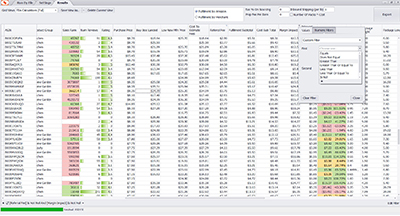
Export to Google Sheets
Export to Google Sheets sends your Analyzer.Tools scan results directly to Google Drive, saving you the extra steps of downloading an Excel file and uploading it yourself. Export an entire results list, send selected products, or automatically create a new spreadsheet when a scan finishes.
In this article
Connect Your Google Account
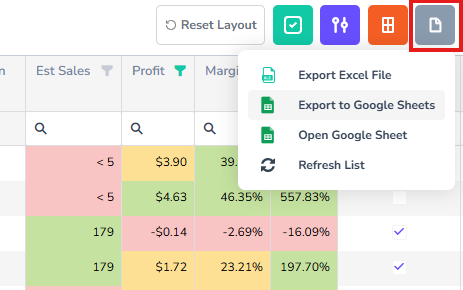
In Scan Results, open Load/Export/Refresh → Export to Google Sheets. Click Connect Google and sign in to the Google account you want to use.
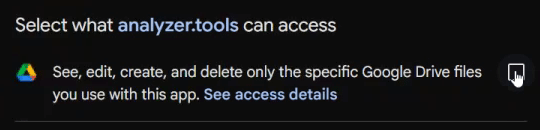
On Google’s permissions screen, check the box for access to the specific Google Drive files you use with Analyzer.Tools, then click Continue. Skipping this checkbox will cause an error. This permission applies to specific files used with the app, rather than unrestricted access to your entire Drive.
Choose a Google Drive Folder
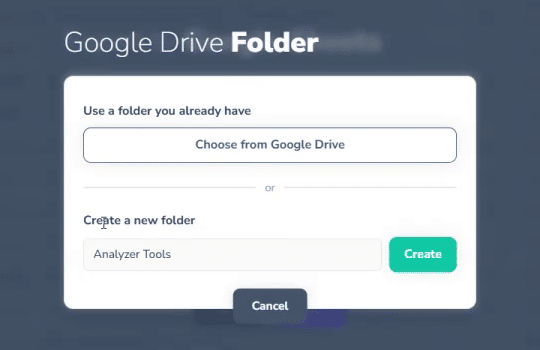
Select Choose from Google Drive to use an existing folder, or enter a folder name and click Create. This becomes your default destination for future exports. You can change the destination when exporting a results list.
Export Results to Google Sheets
Open Load/Export/Refresh → Export to Google Sheets. Review the suggested spreadsheet name or enter your own, then confirm the destination folder. Use Change if you want to save this export somewhere else.
Click Export, then Open Google Sheet when the spreadsheet is ready.
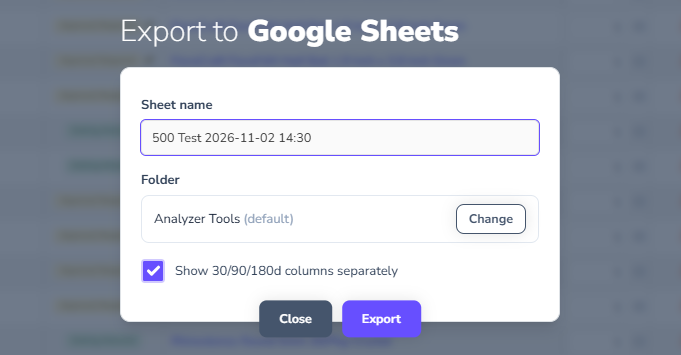
You can reopen an exported spreadsheet using the Open Google Sheet menu action.
Export Selected Products
Only need a shortlist? Select the products using the row checkboxes, then choose Export selected to Google Sheets from the multiselect actions. Confirm the spreadsheet name and folder, then export. For help narrowing your results, see our guide to grid filters and column chooser controls.
Automatically Export Completed Scans
Open Processing & API Settings → Integrations and enable Automatically export completed scans to Google Sheets.
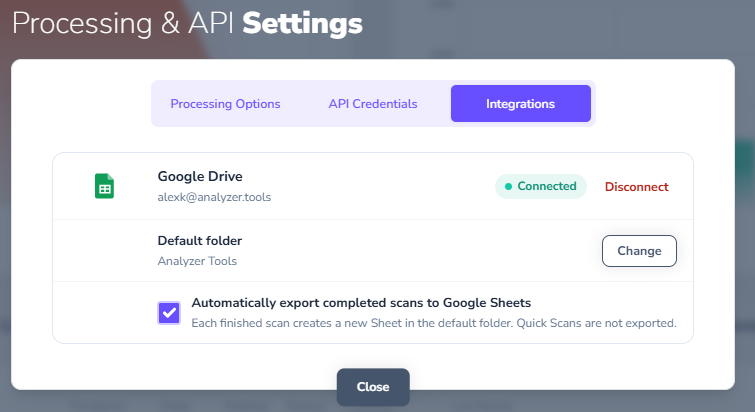
Each completed scan creates a new Sheet in your default folder. Quick Scans are excluded. Automatic export creates a separate file for each completed scan; it does not continuously synchronize an existing spreadsheet.
Manage Your Google Connection
Use the Integrations tab to review your connected Google account, change the default folder, turn automatic exports on or off, or disconnect Google.
Troubleshooting
Google connection fails: Reconnect and make sure you select the required permission checkbox on Google’s consent screen before continuing.
A scan did not export automatically: Confirm automatic exports are enabled in Integrations. Quick Scans are excluded from automatic exports.
Where is my spreadsheet? Check the destination folder shown in the export dialog, or your default folder for automatic exports. For a manually exported list, use Open Google Sheet to open the file directly.
Will changes in Analyzer.Tools update my existing Sheet? No. Each export creates a new spreadsheet. Export again when you need a fresh copy of your results.


Related Articles
-
AI Title Search: Find Amazon Products Without UPC/EANs or ASINs
 News & Updates
Web
2 weeks ago
-
Historical Trend Periods Now Adjustable in the Grid
News & Updates
Web
5 months ago
-
Override Incorrect Multi-Pack Quantities in Bulk
News & Updates
Web
5 months ago
-
Show Premium Data Selectively For Faster Scans
News & Updates
Web
6 months ago
-
Metric/Imperial Units, Digital Services Fee & Storage Fee Transparency
News & Updates
Web
6 months ago
-
Grid Autosave
News & Updates
Web
7 months ago