Resolving UPC/EAN Mismatches with Supplier Catalogs
Searching by UPC or EAN sometimes returns products that are not the ones your supplier sells. This is a UPC/EAN mismatch. It happens when the same UPC or EAN is attached to different products on Amazon, and it is not a data error in Analyzer.Tools or Amazon. This article explains why, and shows two quick ways to find and remove the mismatches.
Results don’t always match my supplier’s catalogue
In this scenario Analyzer.Tools scans a UPC/EAN from your supplier and returns results that don’t match what your supplier sells.
This can happen when brands purchase non-exclusive EAN/UPC codes which are often re-sold and used by multiple other brands. When those brands list their products on Amazon, the result is entirely different products associated with the same UPC/EAN. While at first glance, this situation seemed like a data problem with Analyzer.Tools or Amazon, it’s actually not related to either.
Solution
To deal with this scenario, Analyzer.Tools provides a number of capabilities.
- Initially, ignore the mismatches and filter the entire result to a manageable short list by filtering to products that are selling profitably (based on Profit, ROI, Sales Rank, etc.). For help on how to use the app’s filters and gridviews to do this efficiently, see the Gridviews and Filters guide.
- Now that you have a manageable short list of products that sell through with potential profit, it’s time to dig in and eliminate the mismatches.
- Use one or both methods below to identify the mismatches and remove them from the result by using the right click > Hide feature.
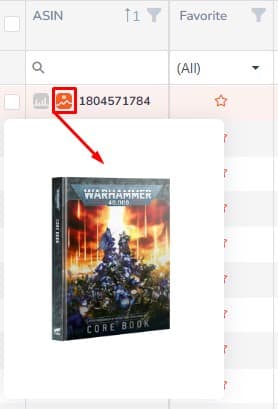
Method 1- Use the Product Image hover
Hover over the product image icon to show the matched product image. If the product image is not the same product as your supplier, it’s usually obvious. For example, the product shown below is a book, if you were expecting a kitchen appliance the image would clearly indicate a mismatch.
Method 2- Add a Reference Column
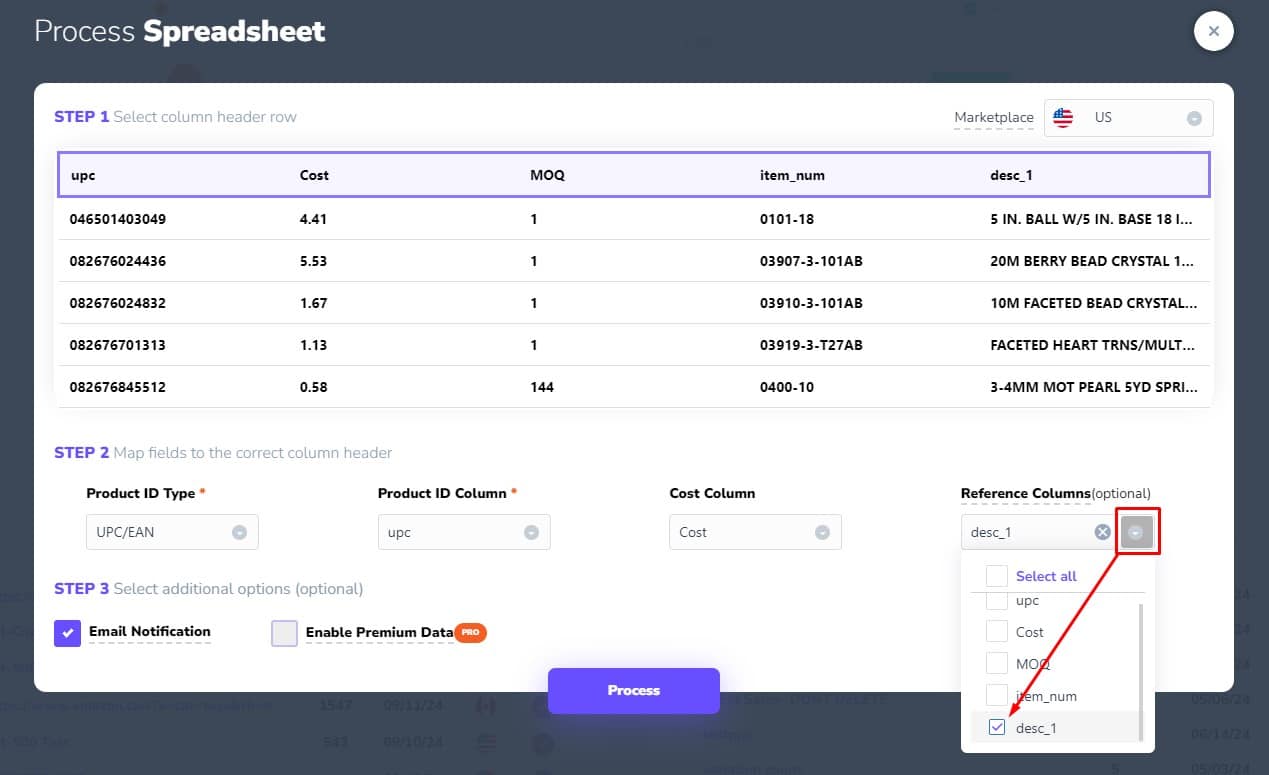
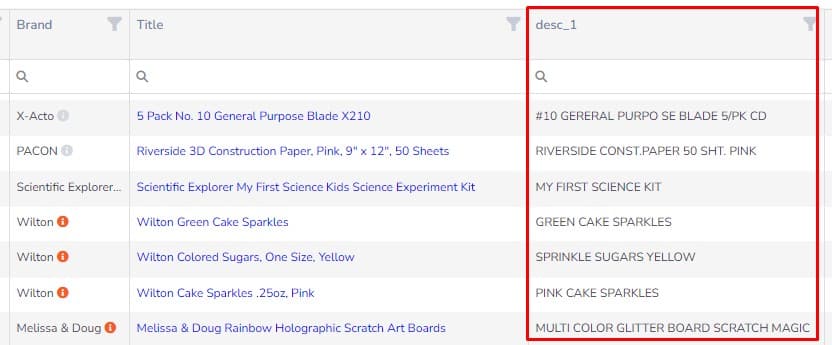
Add a Reference Column to your results with the product name from your supplier’s price sheet. This column will be appended to your results and will allow you to cross reference the result’s Amazon Title to the original product name from your supplier’s spreadsheet. This allows you to spot products that don’t match based on different product names.
Related background- multiple results per UPC/EAN
Amazon allows multiple listings for the same UPC/EAN. By default, Analyzer.Tools will return ALL matching listings which may result in multiple results for the same UPC/EAN, this is normal behavior. Please see this article if you would like to modify the number of matches Analyzer.Tools delivers.
UPC/EAN Mismatch FAQ
What is a UPC/EAN mismatch?
A search by UPC or EAN that returns a different product than your supplier sells, because Amazon lists more than one product under the same UPC or EAN.
Why does the same UPC or EAN show different products?
Brands can buy non-exclusive UPCs and EANs that are re-sold, so several brands end up using the same number.
Why do I get several results for one UPC or EAN?
Amazon allows several listings for the same UPC or EAN, so Analyzer.Tools returns all matches by default. See why a result can contain more products than your spreadsheet to change how many matches you get.
What if my supplier’s UPCs or EANs are unreliable?
AI Title Search matches products by product name instead of by number.
Conclusion
Amazon sells millions of products and sometimes the results can be messy and perplexing. Using a bulk analysis app like Analyzer.Tools provides the tools you need to analyze Amazon products more efficiently.
Analyzer.Tools checks thousands of supplier products at once. See plans and pricing.


Related Articles
-
Export to Google Sheets
 Troubleshooting & FAQ
Web
5 days ago
-
AI Title Search: Find Amazon Products Without UPC/EANs or ASINs
Troubleshooting & FAQ
Web
2 weeks ago
-
Historical Trend Periods Now Adjustable in the Grid
Troubleshooting & FAQ
Web
5 months ago
-
Override Incorrect Multi-Pack Quantities in Bulk
Troubleshooting & FAQ
Web
5 months ago
-
Show Premium Data Selectively For Faster Scans
Troubleshooting & FAQ
Web
6 months ago
-
Metric/Imperial Units, Digital Services Fee & Storage Fee Transparency
Troubleshooting & FAQ
Web
6 months ago